Product updates

What's new in your Neople

Every improvement we ship to Neople Studio and your Neople, newest first. Short version up top, the full story one click away.

October 30, 2026
Onno
Improvement

Procedure descriptions that stay up to date

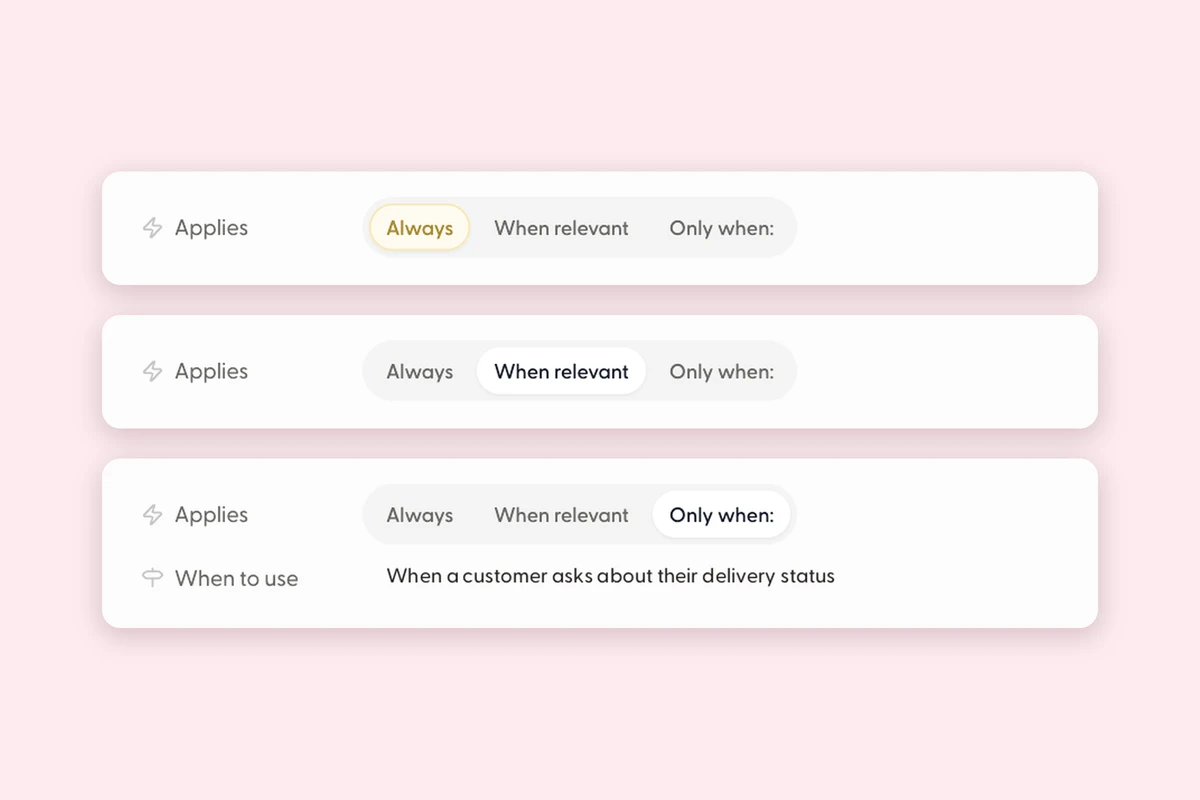
Procedure descriptions now stay up to date. With When relevant, your Neople decides from the latest instructions when a procedure fits, so it's no longer skipped because of an outdated description.
Procedure descriptions that stay up to date

What's new

Procedure descriptions now stay up to date. That's the one change, and it helps your Neople keep picking the right procedure.

Why it matters

Your Neople reads a procedure's description to decide when to use it. When the instructions changed, the description often stayed the same. With an outdated description, a procedure could be skipped, even when it was the right one.

Three options per procedure

At the top of every procedure, under "Applies", you choose one of three options.
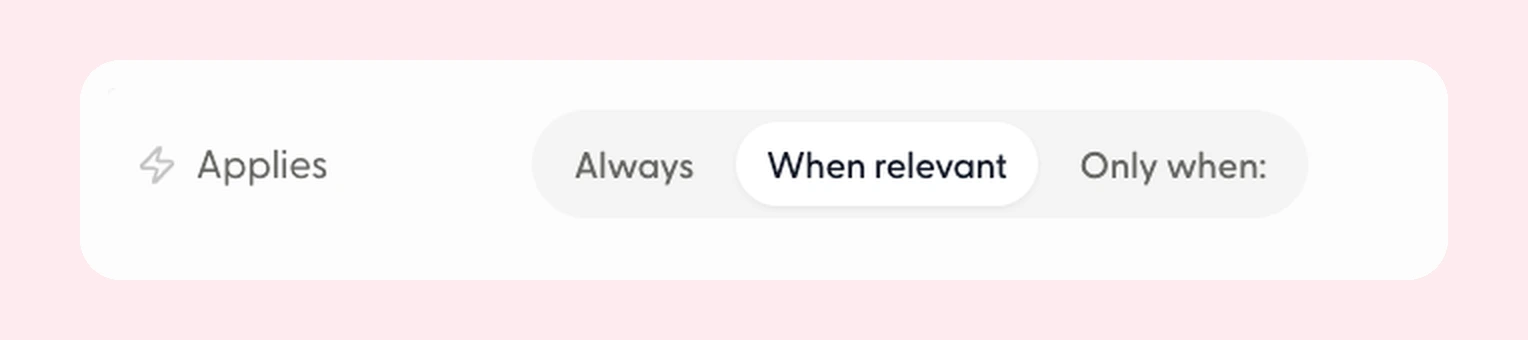
The Applies row of a procedure with three options: Always, When relevant and Only when:

Always
Loaded on every step that shares a topic. It's simply always on.

When relevant
Your Neople decides from the instructions when the procedure fits. Your Neople always looks at the latest version, so an outdated description can't get in the way.

Only when:
Rather decide yourself? Choose "Only when:" and describe the situation. Your Neople then uses the procedure only in that situation.

Good to know

  • All existing procedures start on "When relevant".
  • Want to keep a description you wrote yourself? Switch that procedure to "Only when:" before your next publish.
October 27, 2026
Onno
Improvement

Add your teammates to Neople Studio

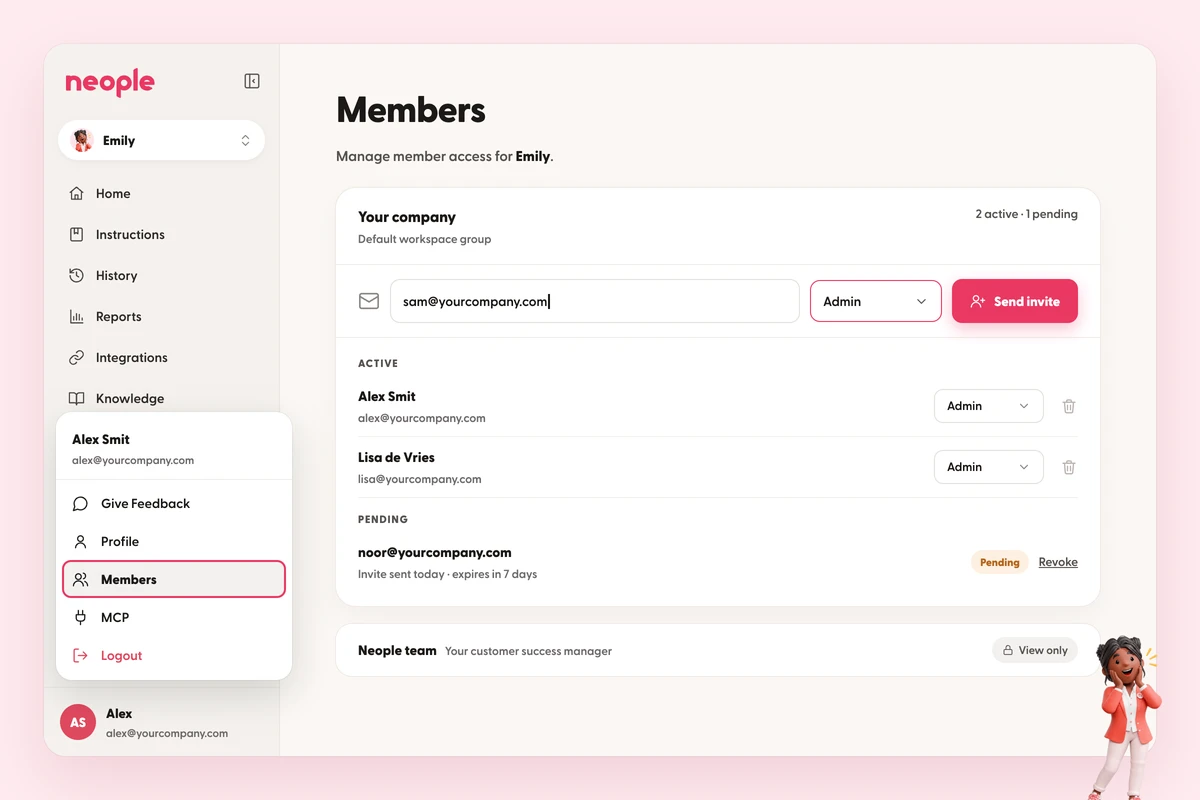
Want a colleague in Neople Studio? Invite them yourself from the Members page. Enter their email, click Send invite and they join with the link in their inbox.

Add your teammates to Neople Studio

Add a teammate in 3 steps

  1. Open Members. Click your name at the bottom left and choose Members.
  2. Enter their email. Pick their role and click Send invite.
  3. They accept. Your teammate gets an email with a link to join. Until then you see them under Pending.

What you see on Members

  • Everyone who is active, with their role.
  • Pending invites. An invite stays open for 7 days, and you can revoke it before then.
  • A bin icon to remove someone who no longer needs access.
  • Your Neople team, like your customer success manager. You can see them, but they are managed by Neople.

One account works for every Neople you have access to. Use the switch button at the top of the sidebar to move between them.

October 27, 2026
Onno
Improvement

A new Reports: see what your Neople did for your customers

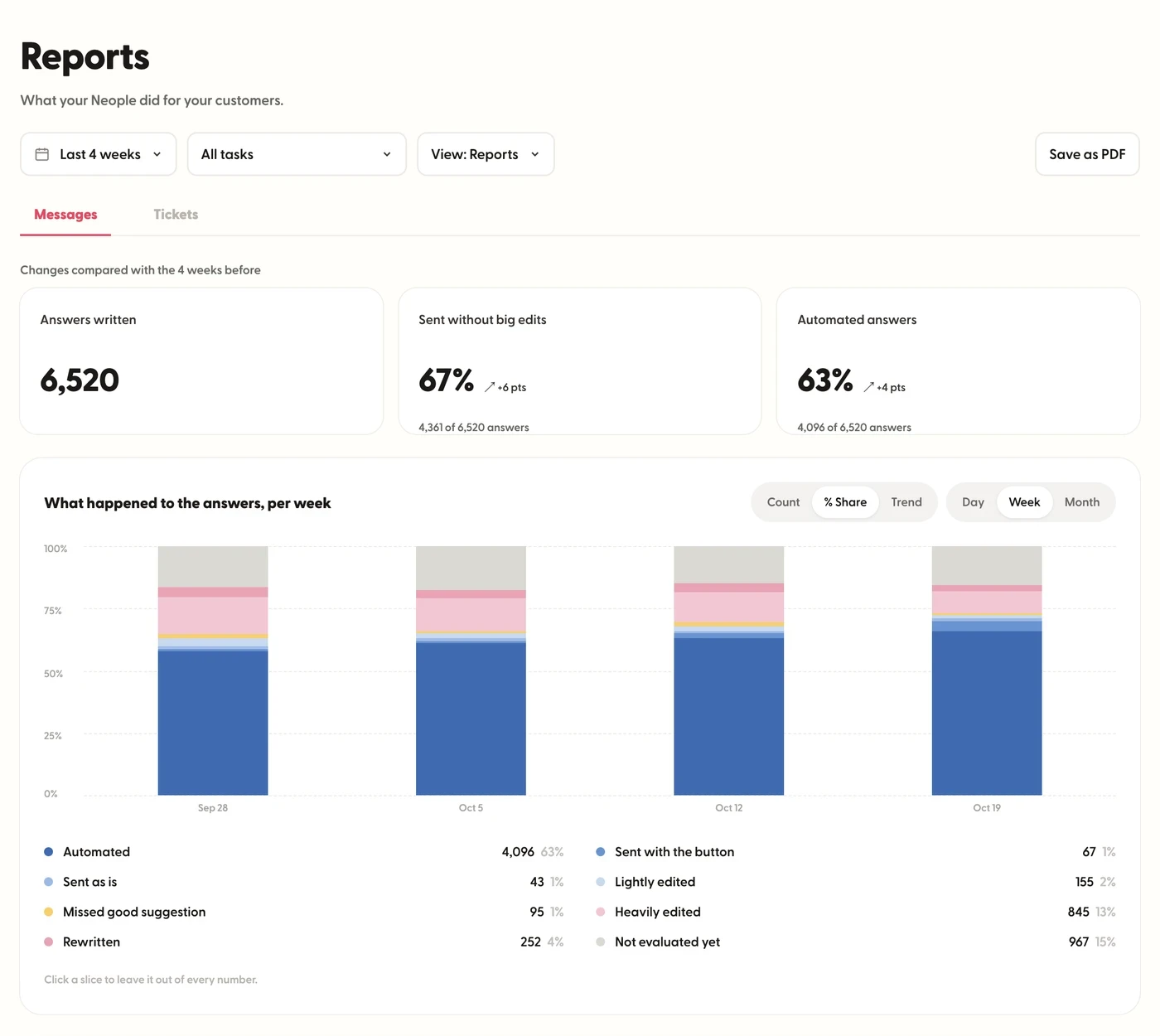
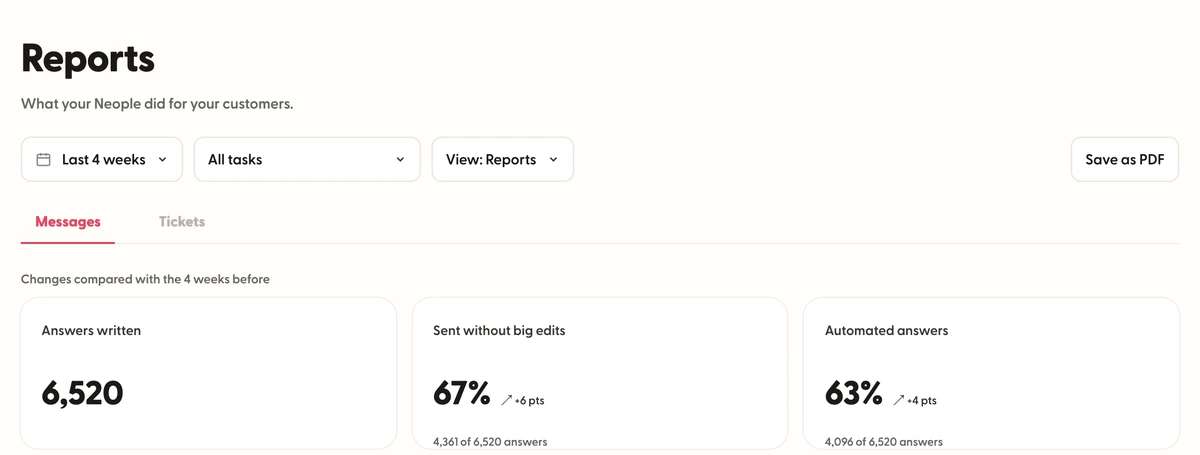
Reports now shows your most important numbers at a glance, so you can measure how your Neople is performing. Dig into any number to see what's behind it and where the biggest chance to improve lies.

A new Reports: see what your Neople did for your customers

Your key numbers at a glance

Three tiles at the top: answers written, sent without big edits and automated answers. Each one shows the change against the period before, so you see right away if your Neople is getting better.

The top of the new Reports page with three tiles: answers written, sent without big edits and automated answers

Dig into what's behind them

Every number opens what's behind it, so you see where the biggest chance lies to make your Neople better.

1. What happened to your Neople's replies

See the performance per day, week or month. Weekly and monthly views are new and make it easier to spot trends. You can also pick any period in the calendar.

Switch between Count, Share and Trend to see the numbers, the percentages or how they change over time.

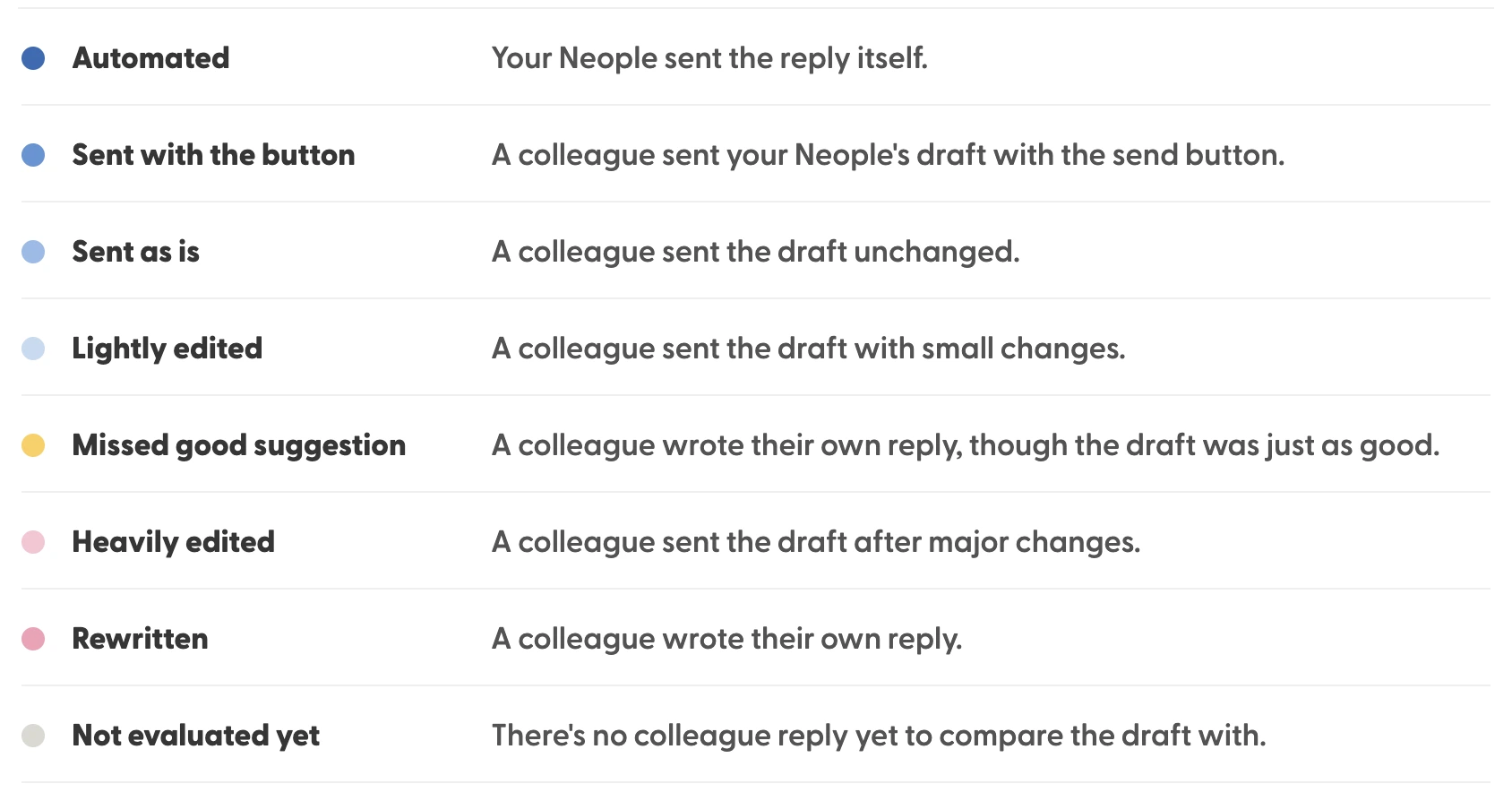
2. What the data mean

Every answer gets one outcome.

The colour legend: Automated, Sent with the button, Sent as is, Lightly edited, Missed good suggestion, Heavily edited, Rewritten and Not evaluated yet, each with what it means

Want to focus on part of it? Click a colour to leave it out. Every number and chart updates right away, like here without Missed good suggestion and Heavily edited.

The legend with Missed good suggestion and Heavily edited left out: Automated is now 73% of the answers that are left

Two tabs: Messages and Tickets

Reports has two tabs now.

Messages
Counts per answer. How good are your Neople's drafts, and how many answers went out without a colleague?

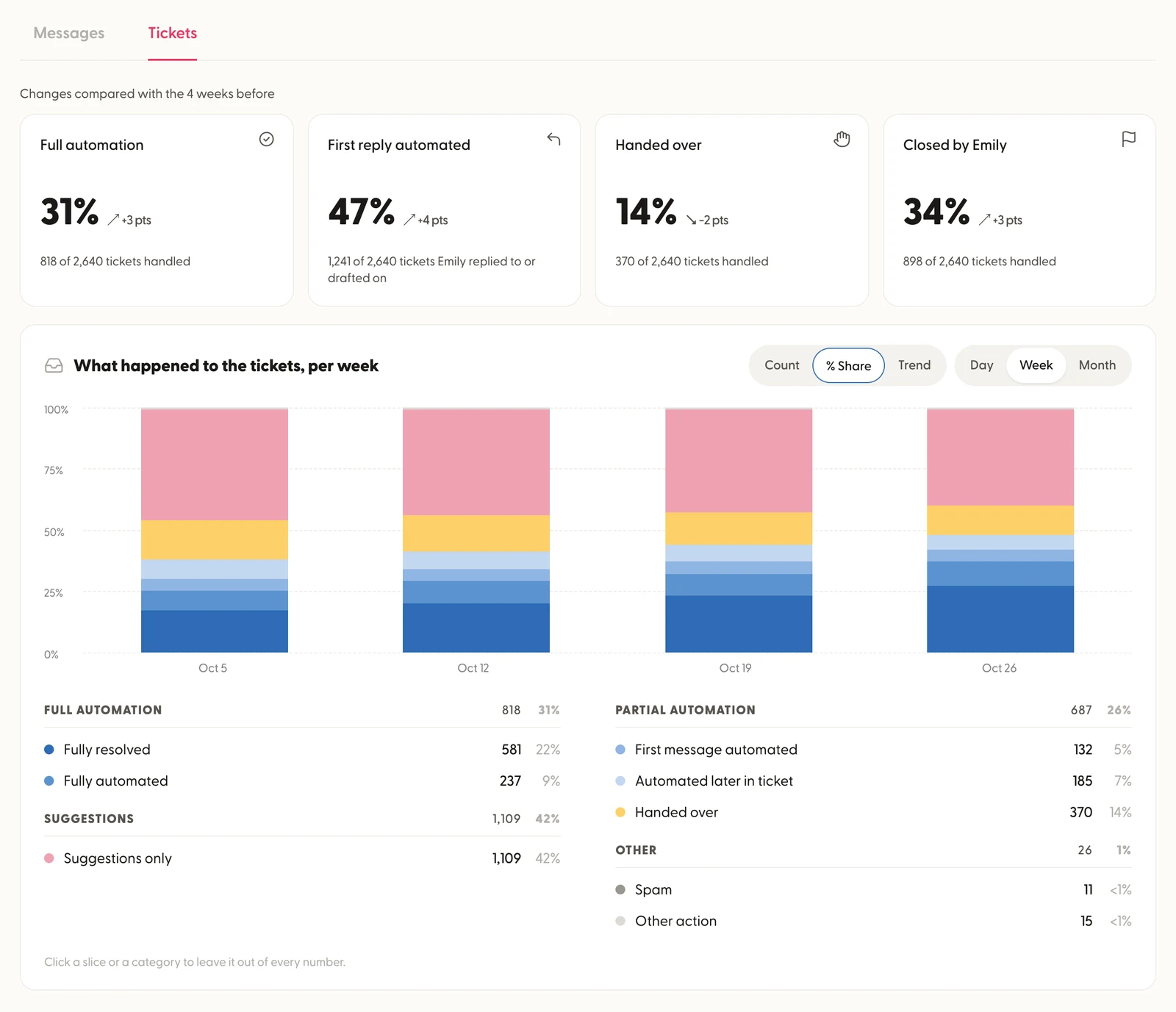
Tickets
Counts per customer ticket, from the first message to the last. Did your Neople handle it from start to finish, partly, or did it only draft the replies? The focus here is on whether your Neople actually resolved a ticket, all the way to closing it. That's especially useful if you let your Neople close tickets on its own.

On Tickets, four tiles show full automation, first reply automated, handed over and closed by your Neople. The chart groups every ticket into full automation, partial automation, suggestions only and other. Click a tile to open those tickets in History.

The Tickets tab: four tiles for full automation, first reply automated, handed over and closed by your Neople, and a chart of what happened to the tickets per week
October 23, 2026
Onno
Improvement

A new Home in Neople Studio

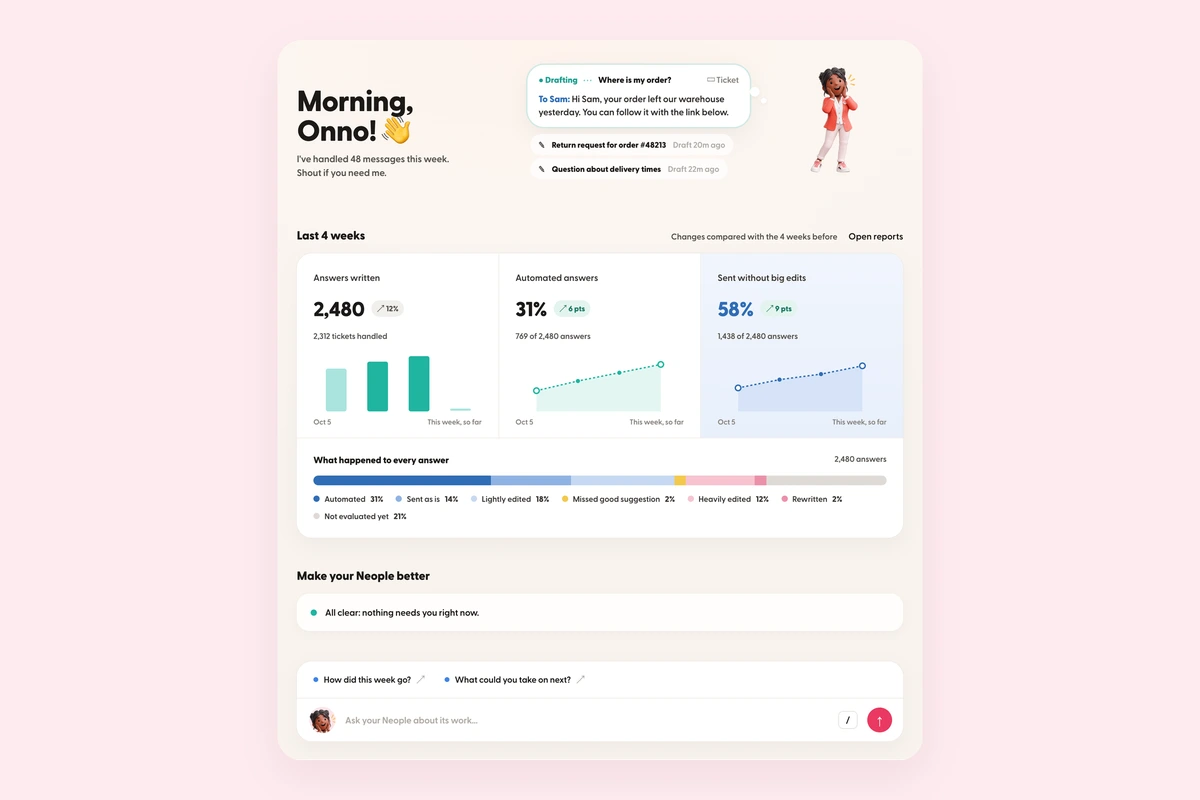
Open Neople Studio and you see right away how your Neople is doing: what it worked on lately, your numbers from the last 4 weeks and what to fix next.

A new Home in Neople Studio

What you see:

  • Your Neople latest tickets, Where it’s working on one right now.
  • Your last 4 weeks: answers written, automated answers, sent without big edits and what happened to every answer.
  • Make your Neople better: what needs your attention, like a disconnected integration, or knowledge gaps.
  • Ask your Neople about its work, with suggested questions to start.

Working with more than one Neople? Click its name in the sidebar to open their Home page.

October 19, 2026
Onno
New

Your Neople can read images and attachments

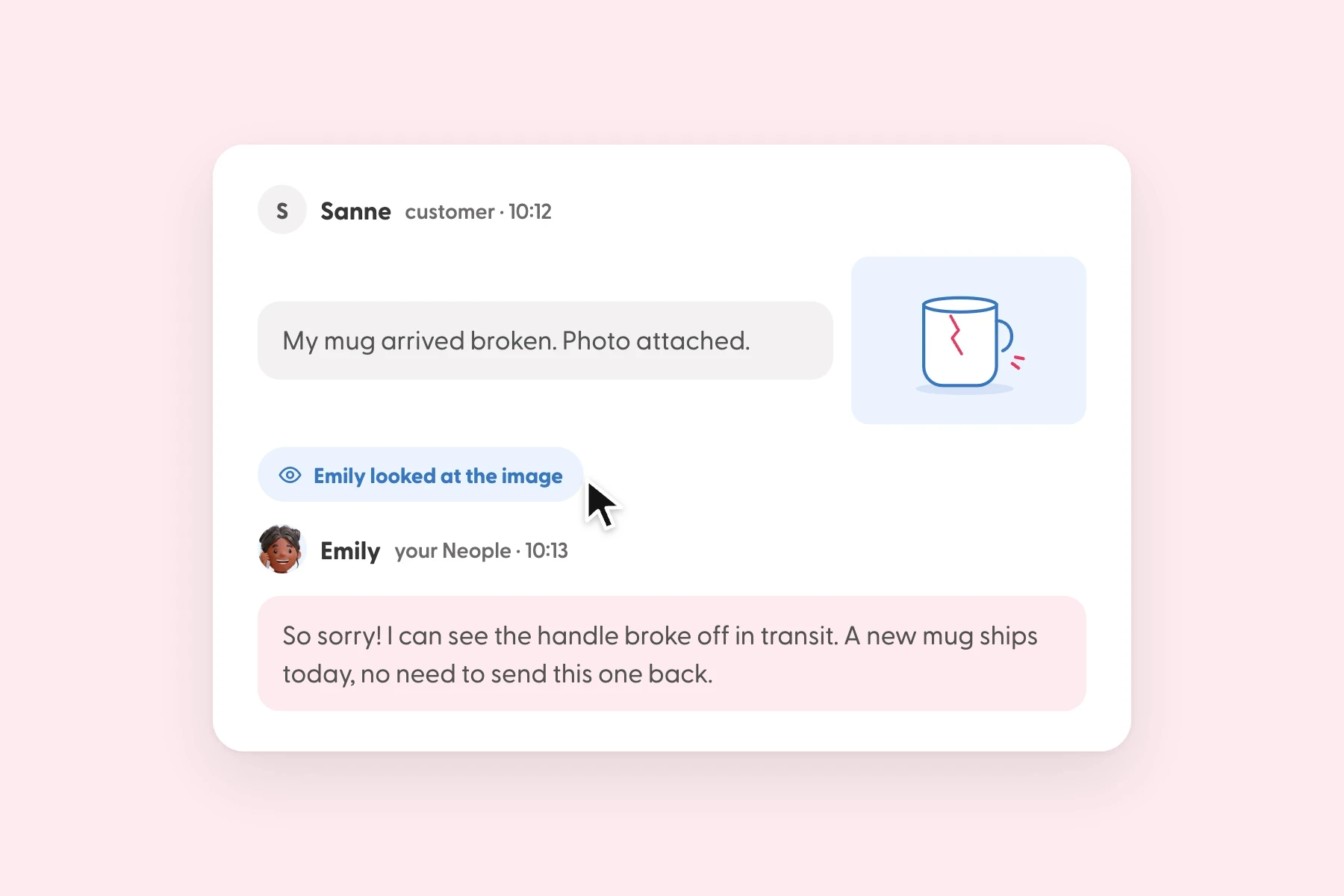
Customers often send a screenshot, a photo or an invoice. Your Neople now looks at the image or reads the file and uses what it finds in its reply, like an order number or the damage on a product.

Your Neople can read images and attachments

Why it matters

"Photo attached" used to mean waiting until someone on your team opened it. Now your Neople looks at the picture itself, so customers don't have to type out what they already sent.

What your Neople can read

  • Photos and screenshots, with the View Image action
  • PDFs and documents like invoices, with the Get Text From File action

Where it helps

  • A screenshot instead of typing: an order confirmation, track and trace or an error message
  • Proof: a return receipt, shipping label or proof of purchase
  • Something's wrong: damage, or a wrong or missing item
  • Which product: packaging, a care label or a serial number

We help you set it up

Want your Neople to read images and attachments? Reach out to your customer success manager and we'll set it up with you. Just email support@neople.io.

Where to find it

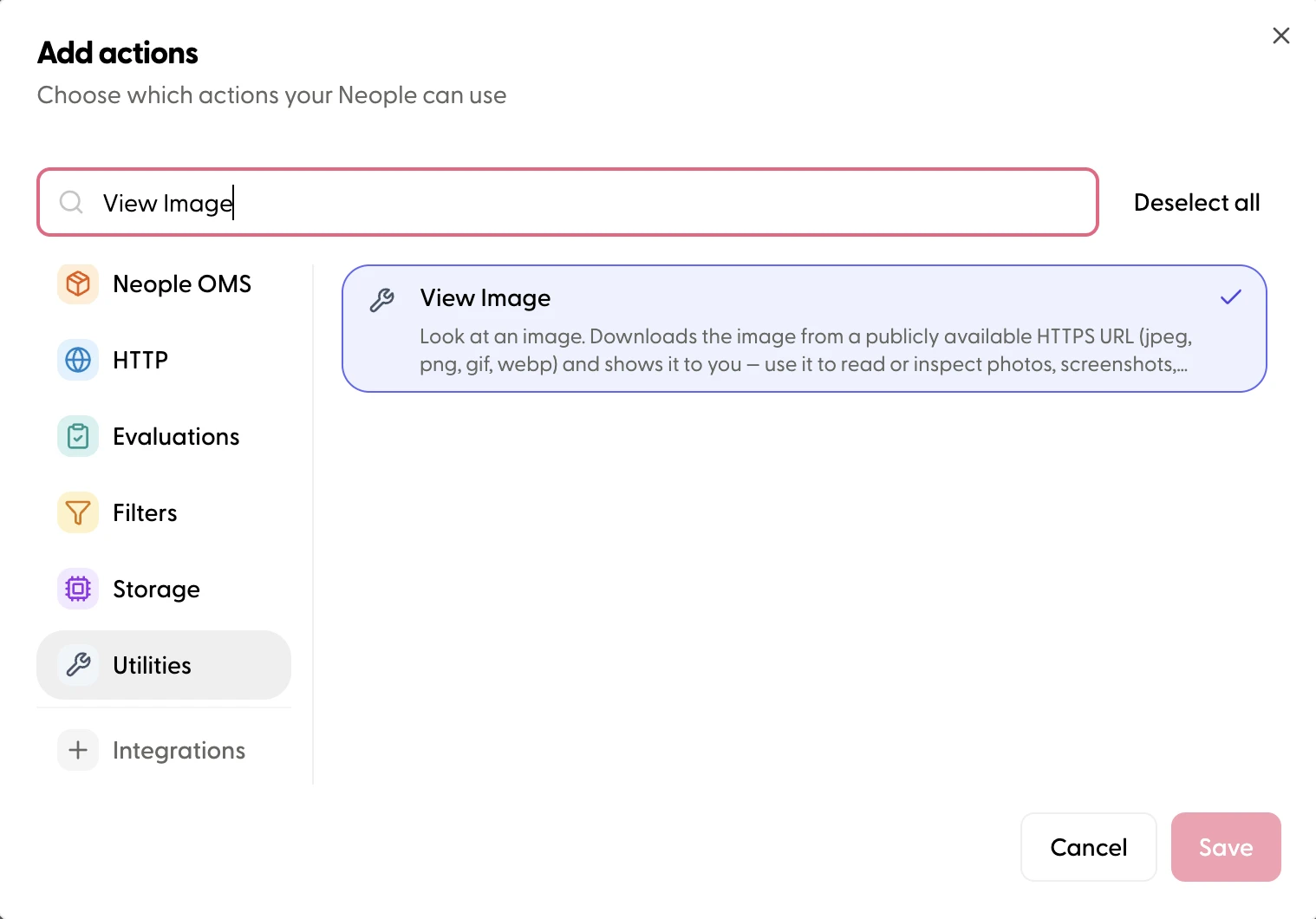
In Neople Studio, go to Instructions and open a procedure. Type / and pick View Image or Get Text From File under Actions.

The Add actions dialog in Neople Studio with View Image selected under Utilities

Attachments are picked up from Freshdesk, Zendesk, Trengo and Gorgias. Other contact centers need a small update first.

September 3, 2026
Onno
New

See who wrote what in your procedures

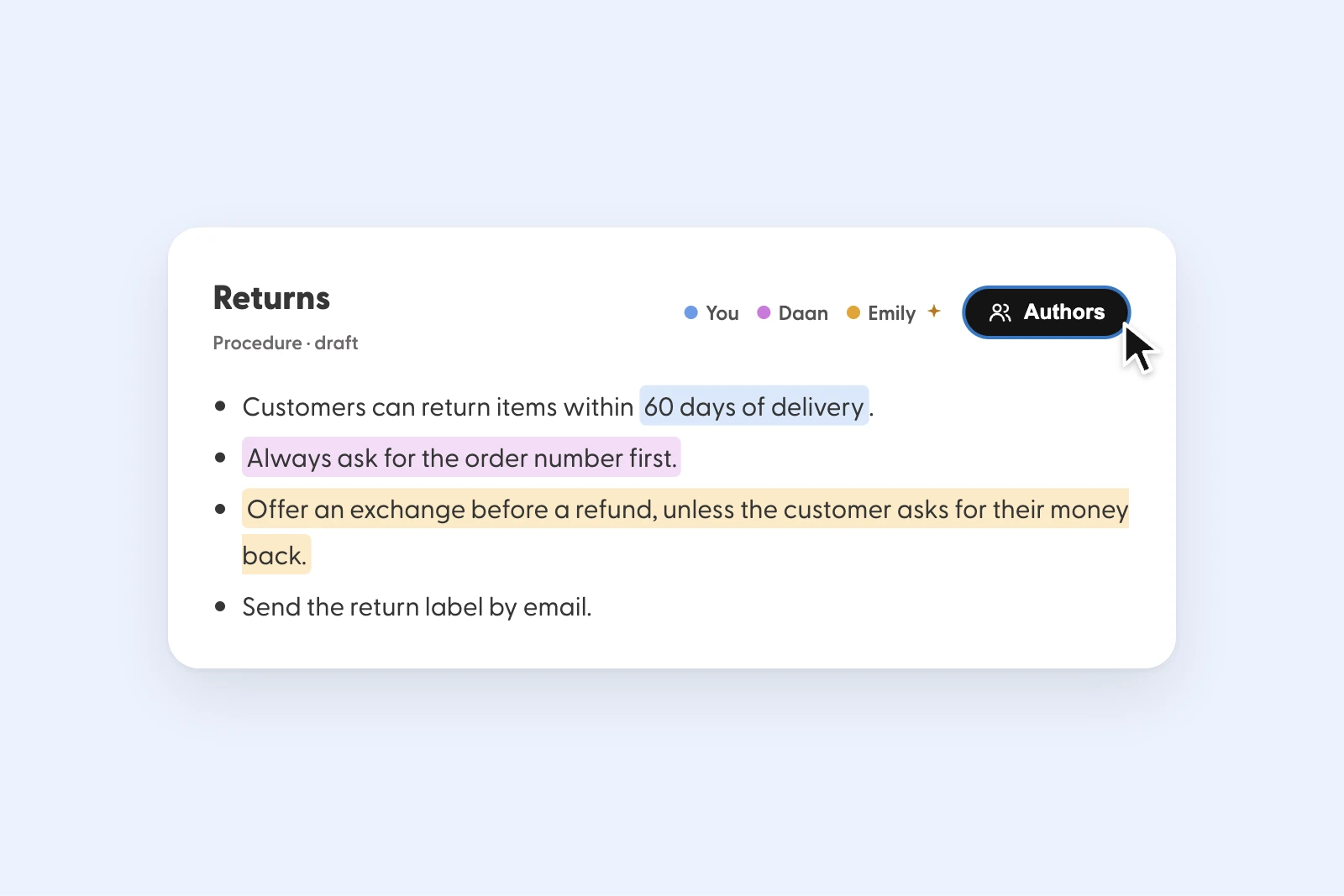
Procedure text is now colored by author, in the editor and when you publish. You see at a glance which sentences changed and who wrote them, including the changes your Neople made for you.

See who wrote what in your procedures

When your team and your Neople all work on the same procedures, you want to know what changed before it goes live. Now every sentence shows who wrote it.

  • Every sentence is colored by the person who wrote it
  • A Changed by legend lists who has unpublished text in the draft
  • Your own edits are always blue, and changes you asked your Neople for are always amber
  • Changes by your Neople show who asked for them
  • Two people can edit the same draft at once, with avatars showing who's in it
August 6, 2026
Onno
New

From maintaining your Neople to collaborating with it

Your Neople now lives in the bottom-left corner of Studio. Describe what you need in your own words and your Neople writes or updates the procedure for you. Nothing goes live until you approve it.

From maintaining your Neople to collaborating with it

What it can do

Your Neople can now build and update procedures and workflows on its own. You describe what you want, your Neople writes it.

  • Sharpen an instruction
  • Add something new
  • Fix the tone
  • Clean up a messy procedure

Why this one matters

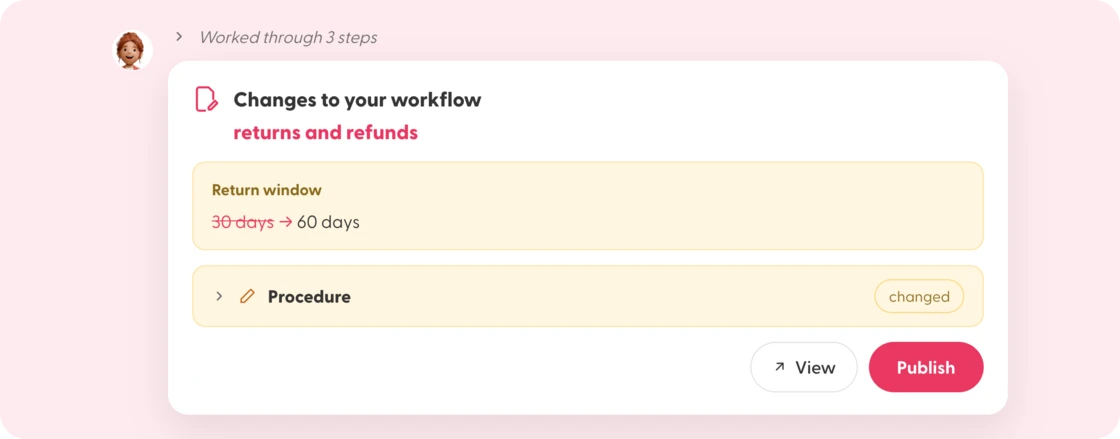
Your company knowledge changes. A promo ends on Sunday. The return window goes from 30 days to 60. Telling a colleague is easy: you mention it in the morning meeting, they ask one question back, and by the afternoon they handle it properly.

Until now you had to know where your Neople's knowledge lived and edit the building blocks yourself. That changes here: your Neople is a colleague you can actually talk to.

Asking your Neople to update a procedure

How it works

  1. You say what you need, in your own words. “We've extended the return window to 60 days” is enough to start.
  2. Your Neople checks it understood you. Does the new window apply to sale items too? If something could go two ways, your Neople asks before writing.
  3. Your Neople writes the procedure. In the structure you already use, with the building blocks you'd have picked yourself.
  4. You look at it and decide. You see what changed before anything happens. Keep it, adjust it, or throw it away.

Things you can ask

We're running a summer promo until 31 August, free shipping over €50. Add it.
Our return window is 60 days now, not 30. Update the return procedure.
We no longer ship to the UK. Make sure that's covered.
This procedure has gotten long and messy. Can you tidy it up?

Nothing goes live without you

Your Neople never publishes directly. You review, you decide, you publish. Trying something out costs you nothing.

Reviewing changes before publishing
July 21, 2026
Onno
Improvement

A redesigned ticket view

The History page now centers on the ticket. Follow the full conversation and see exactly what your Neople did in the background, all in one view.

A redesigned ticket view

One view, the full story

Open any ticket and the customer conversation sits front and center, with an “Actions taken” panel right beside it. No more switching between tabs.

Click a response, see the work behind it

Every reply your Neople sent is now clickable. Click one to see each step and action your Neople took before sending it.

Readable data, less raw code

Ticket data now shows as clean, labeled fields with real dates instead of JSON. Larger payloads open in a searchable view.

No updates with this label yet.

Ready to meet your first AI colleague?

Automated where it can be, human where it counts, and managed from start to finish.

A Neople